What's new in Nata: policy templates, single sign-on and clean offboarding
The biggest change this week: Nata now includes twelve SOC 2 policy templates. You can adopt one, fill in a few details and publish it as your own, already linked to the controls it covers. We also shipped five roles with a proper handover when someone leaves, plus single sign-on and SCIM provisioning, so proving who has access gets much easier.
Policy templates you can adopt in minutes
Writing a full SOC 2 policy set from a blank page is slow. Until you have one, most of your policy-backed controls sit at “Not started”.
Pick a template, fill in three details, and get a draft policy already linked to the controls it covers.
Nata now includes twelve policy templates written by our team: Information Security, Acceptable Use, Access Control, Change Management, Incident Response, Business Continuity and Disaster Recovery, Vendor Management, Data Classification and Retention, Encryption, Risk Assessment, Secure Software Development, and Human Resources Security. Each template shows its full text and the controls it covers. You fill in your organization’s name, your security officer and how often you review the policy. Nata then creates a draft policy that belongs to you, already linked to those controls. From there you edit, publish and collect staff acceptance as with any policy. Acceptable Use and Information Security start with staff acceptance turned on.
The templates page also lists your controls that don’t have a policy yet, with the templates that would cover each one. A control page without a policy points you to the right template.
This saves hours of writing and gives your controls their first policy. Policies are what SOC 2 expects behind your control activities (CC5.3). Each adoption is recorded in your activity log, and the policy shows which template and version it came from. The templates are a starting point for you to review and adapt, not legal advice.
How to try it: browse the policy templates.
Five roles, and a clean handover when someone leaves
Two things are hard to show an auditor: that leavers lost access, and that their work was handed to someone. It is also hard to give a control owner in another team access to their controls without giving them everything.
Removing someone shows everything they hold and hands it to a successor in the same step, so nothing is left without an owner.
Nata now has five roles: Owner, Admin, Contributor, Control editor and Auditor. A Control editor can edit only the controls assigned to them and complete their own tasks. They can read the rest. An Auditor can read everything, including the activity log, and change nothing. Nata enforces these rules on every page and action.
When you remove someone, Nata first lists the controls and open tasks assigned to them and the integrations they connected. You pick who takes over, and everything moves to that person in one step. The leaver’s sessions and passkeys end at once and they can’t sign in again. Everything they did keeps their name, marked “(removed)”, and the members page lists removed members with when and by whom. Before this change, removing someone who had uploaded evidence or owned a control failed with an error. Every organization keeps at least one owner, and the members page warns you while you have only one.
Each role change, removal and reassignment is recorded in your activity log. That is evidence for removing access on time and granting it by role (CC6.2, CC6.3).
How to try it: open the Members page.
Single sign-on with OIDC or SAML, and the option to require it
You want people to sign in through the identity provider you already manage. Then turning someone off there turns off their Nata access too.
Once you require single sign-on, people on your domain can only get in through your identity provider, and even an old email link is turned away.
Admins can now connect one identity provider per organization, over OpenID Connect or SAML 2.0. You verify your email domains with a DNS TXT record, and people on those domains are sent to your identity provider from Nata’s sign-in page. You run a test sign-in before you turn SSO on, so a broken setup can’t lock people out. You can also have Nata add new people automatically with the Contributor, Control editor or Auditor role.
When you require SSO, passkeys and email sign-in links stop working for members on your verified domains. Owners keep passkey sign-in as a break-glass in case your identity provider is down. People outside your domains, such as an external auditor, keep their usual way to sign in. Turning it on ends sessions that weren’t started through SSO. SAML sign-in starts from Nata’s sign-in page; starting it from your identity provider’s app tile isn’t supported.
Changes to SSO settings are recorded in your activity log, which helps you show how logical access is controlled (CC6.1). The SSO settings page now also keeps the usual sidebar and menu.
How to try it: set up single sign-on.
Leavers lose access automatically with SCIM
When someone leaves, their Nata access should end when IT turns them off, not when someone remembers to remove them.
When your identity provider removes someone, their access ends at once and their controls wait for you to hand over in one click.
Nata now supports SCIM 2.0 user provisioning, the standard Okta and Microsoft Entra ID use to manage app accounts (SCIM 2.0 protocol, RFC 7644). You turn it on and give your identity provider the base URL and token Nata shows you once. When your identity provider deactivates or deletes someone, their sessions, passkeys and SSO links end at once, and their history stays. Controls they owned are flagged on the Members page so you can reassign them in one step. Their open tasks go to an owner. The last owner can’t be removed this way.
New people on your verified domains get an account with the role you choose (Contributor, Control editor or Auditor). Nata sends them no email. Roles are set in Nata; roles and groups sent by your identity provider are ignored.
Every change shows up in your activity log as made by SCIM provisioning. That record shows access was removed when people left (CC6.2).
How to try it: turn on provisioning.
See which integrations can automate each control
When you look at an unmet control, you can’t tell whether connecting a tool you already use would collect its evidence for you. So you upload screenshots instead.
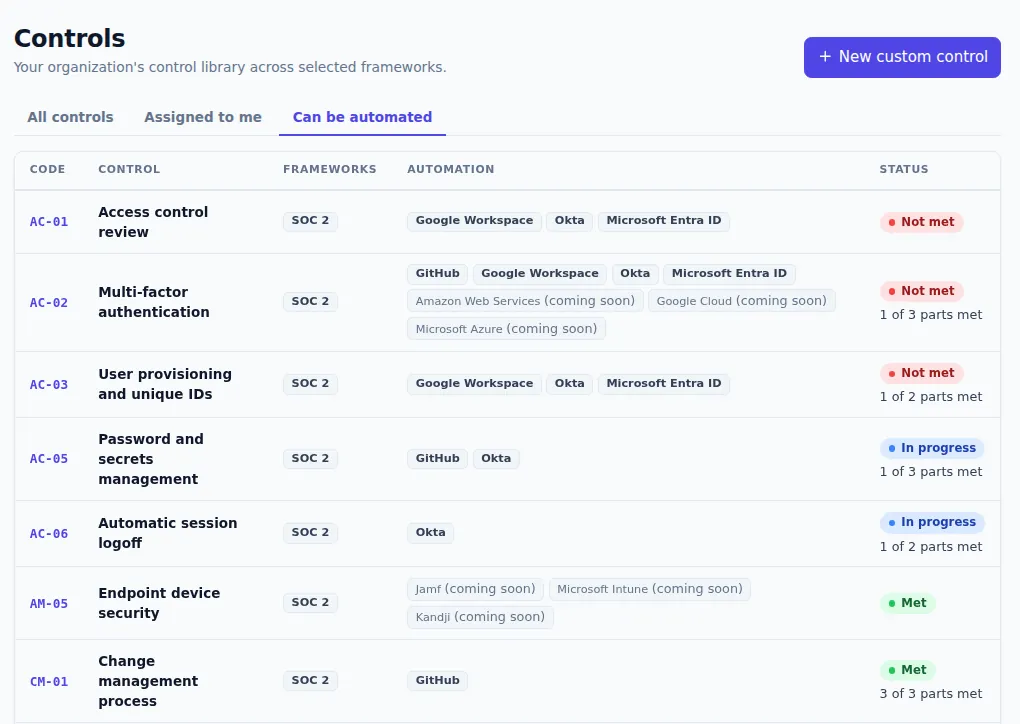
See at a glance which controls the tools you already use can prove automatically, and what to connect next.
Each control page now has an “Automate this control” card. It lists the integrations that can collect that control’s evidence, with your standing for each: connected, needs attention, available, not configured or coming soon. Each one links to its integration page. The controls list has a new “Can be automated” tab, and every row names the integrations that feed that control. Amazon Web Services, Google Cloud, Microsoft Azure, Jamf, Microsoft Intune and Kandji are listed as coming soon and can’t be connected yet.
This builds on the daily checks we described in Introducing Nata. It turns an unmet control into a next step, and shows which connection would take the most manual evidence off your hands.
How to try it: open the controls list and choose the “Can be automated” tab.
Export your audit log, or stream it to your SIEM
Before approving a vendor, security teams ask two things: can we get the audit log out, and can it go to our SIEM?
The Activity page now has Export CSV and Export JSON. Each downloads every event that matches your current filters, with no page limit. Owners, Admins and Auditors can export.
A new Audit log webhook, under Logging & SIEM in the integrations catalog, streams new audit events to a destination you control. You give it an HTTPS address and an optional authentication header, which Nata stores encrypted and never shows again. You choose a format: generic JSON, Splunk HTTP Event Collector, or Datadog Logs. You can also start up to 30 days back. Events arrive in order, usually within a couple of minutes. If your destination is down, Nata keeps them queued and retries. The integration page shows the last error, and admins are notified after 24 hours of failures. A Send test event button lets you check the setup.
This puts Nata’s audit trail next to the rest of your monitoring (CC7.2).
How to try it: export from the Activity page or connect the audit log webhook.
Export your data and set how long evidence is kept
Buyers want to know they can leave with their data, and your own retention policy needs to apply to the evidence you upload.
Owners and Admins can now request a full export of their organization. Nata builds it in the background and tells you when it’s ready. You get one zip file with your controls, evidence records and files, policies, tasks, people, training records, policy acceptances, members, integration settings (without secrets) and the full activity log. The data comes as JSON, and as CSV for the tables. The download stays available for 7 days.
You can also set how long uploaded evidence is kept: forever, which is the default, or 1, 2, 3, 5 or 7 years. Before you save a shorter period, Nata shows how many records it would remove. Once a day it removes uploaded evidence older than the period, records each removal in the activity log and tells admins. Evidence collected by integrations, policy acceptances and the activity log are never removed this way.
If you ever want your organization deleted, ask us in writing. We suspend it for 30 days so you can change your mind, then remove its data. This supports disposing of confidential information on schedule (C1.2).
How to try it: open data settings.
Repository tasks close themselves when the fix lands
When a GitHub or GitLab check that used to pass starts failing, Nata opens a task. Until now, nothing closed that task after you fixed the problem, so your task list filled up with work that was already done.
After each sync, Nata now closes the task once every repository check behind that control passes again, and records when. A check that couldn’t run because of a missing permission doesn’t count as fixed. Removing the connection also closes the task if nothing else is still failing. Tasks you created yourself are never touched. The change is recorded in your activity log, and no one is notified.
Your task list now shows only open work, without anyone tidying it by hand.
How to try it: open your tasks.
Shorter session timeouts, and a list of your own sessions
Your policy might call for a shorter idle timeout than Nata’s defaults of 60 idle minutes and 12 hours per session.
Owners and Admins can now set a shorter idle timeout (at least 5 minutes) and a shorter maximum session length (at least 1 hour) for their organization. Sessions that are already open follow the new limits on their next request. On your account page, you can now see every browser where you’re signed in: the device, how you signed in, when the session started and when it was last active. You can sign out any of them.
Session starts and ends, and every change to the timeouts, are now recorded in your activity log. Together they show your session policy is set and enforced (CC6.1).
How to try it: set session timeouts and see your sessions.
A read-only API for your own reports
Pulling control status into a board spreadsheet or open tasks into your ticketing system meant copying by hand.
Owners and Admins can now create named API tokens for a read-only JSON API. Each token reads only the areas you pick: organization, controls, evidence, tasks, people or members. Each one expires after 30, 90, 180 or 365 days. Nata shows the secret once, shows when each token was last used, and lets you revoke a token at any time. For evidence, the API returns details such as title, source and dates, never the files. Creating and revoking tokens is recorded in your activity log, and a reference page documents every field.
How to try it: create an API token and read the API reference.
Smoother GitHub and GitLab connections
Connecting your source control should take one pass, and evidence should show up right away.
Choosing a GitLab project now starts the first sync immediately. Before, evidence could take until the next day unless you clicked Sync now. On GitHub, a page that loads twice on the way back from GitHub no longer ends on an “expired” message. After you install the GitHub App, Nata connects that installation and goes straight to repository selection when it’s the only new one. Installations you’ve already connected are labeled. When GitHub, GitLab or Google refuse or can’t complete a connection attempt, you now get a clear “connect again” message instead of an error page. The Sync now button on the identity directory also matches the other integration pages.
How to try it: connect GitHub or connect GitLab.
If you’d like a walkthrough of any of this, get in touch.