What's new in Nata: a risk register and your choice of SOC 2 categories
The biggest change this week is a risk register. Every SOC 2 audit asks for your risk assessment and proof that you review it. Most small teams keep that in a spreadsheet that goes stale. It now lives next to your controls, and Nata reminds owners when a review is due. You can also choose which SOC 2 categories your report covers, record evidence without a file, and see where your program stands against NIST CSF 2.0.
A risk register that keeps itself current
When your auditor asks for your risk assessment (CC3.1 to CC3.4), they want two things: the risks and how you scored them, and a trail showing you reviewed them. A spreadsheet gives you the first and rarely the second.
Recording a review updates the risk’s residual level, keeps the before and after in its history and closes the overdue review task.
The new Risks page holds your register. Each risk has an owner, a category, a treatment (accept, mitigate, transfer or avoid), a plan and a next review date. You rate its likelihood and impact on a 5 x 5 scale, then rate how well your controls reduce it: Low, Medium or High. Nata suggests that rating from the status of the controls you link to the risk, for example “2 of 3 linked controls are Met”, but you always choose. The residual level follows from a published matrix. Each risk page shows both matrices with the risk’s cells marked, so anyone can see why it got its level. A heat map at the top of the register shows where your risks sit, before and after controls. Select a cell to list its risks.
Reviews are either periodic or triggered by a change, such as a move to a new cloud provider. Each review is kept with the levels as rated at the time and is never edited. Every day, Nata opens a review task for each risk past its review date and assigns it to the risk’s owner. Recording the review, or closing the risk, completes the task.
You can link each risk to the controls that mitigate it, and each control page lists the risks it helps with. Auditors can read everything and change nothing. The register and its reviews are in the CSV download, your data export and your audit packages. When someone leaves, their risks are handed over with their controls and tasks.
The result: your risk assessment and its review trail come from one place, and overdue reviews don’t slip past unnoticed.
How to try it: open the risk register or download it as CSV.
Choose the SOC 2 categories your report covers
Many SOC 2 reports cover more than Security. Until now, Nata only tracked Security, so Availability or Confidentiality work had nowhere to go.
Adding a category brings its criteria and controls into your SOC 2 tracking at once, and nothing is lost if you remove it later.
Nata now includes all five Trust Services Criteria categories. Security is always included. Availability (A1), Confidentiality (C1), Processing Integrity (PI1) and Privacy (P1 to P8) are optional. Each comes with criteria and controls that describe the work. Choose your categories at onboarding or later. Readiness, the SOC 2 page, the controls list, audit packages and the API then count only what you chose.
If you remove a category, its controls are hidden but nothing is deleted. Add the category back and its statuses, evidence and tasks return as they were. Every change is recorded in the activity log.
Existing organizations stay at Security only, and their numbers don’t change until they add a category. The Privacy controls describe process work and evidence, not legal advice.
How to try it: as an Owner or Admin, change your SOC 2 categories.
Record evidence as a note or a link
A lot of proof isn’t a file. It might be a statement (“Q3 access review done on 1 October, two accounts removed”) or a ticket, wiki page or shared folder somewhere else. Teams were uploading screenshots of notes, which is slow for them and hard for auditors to read.
A written statement becomes dated, attributed evidence on the control in seconds, with no screenshot needed.
The evidence form on every control and part now offers File, Note or Link. A note is plain text, up to 5,000 characters. A link must be an https address and can carry a short note. Notes and links count like files: they refresh evidence freshness, close “evidence expired” tasks, and can mark a part met in the same step. Nata stores and shows links but never visits them. Audit packages, data exports and the API include the note text and the address, so auditors see the proof itself, not an empty row.
How to try it: open a control and choose Note or Link in its evidence form.
Five new controls, and your program against NIST CSF 2.0
Boards, cyber insurers and many security questionnaires ask about your program in NIST CSF 2.0 terms, even when the audit you’re preparing for is SOC 2.
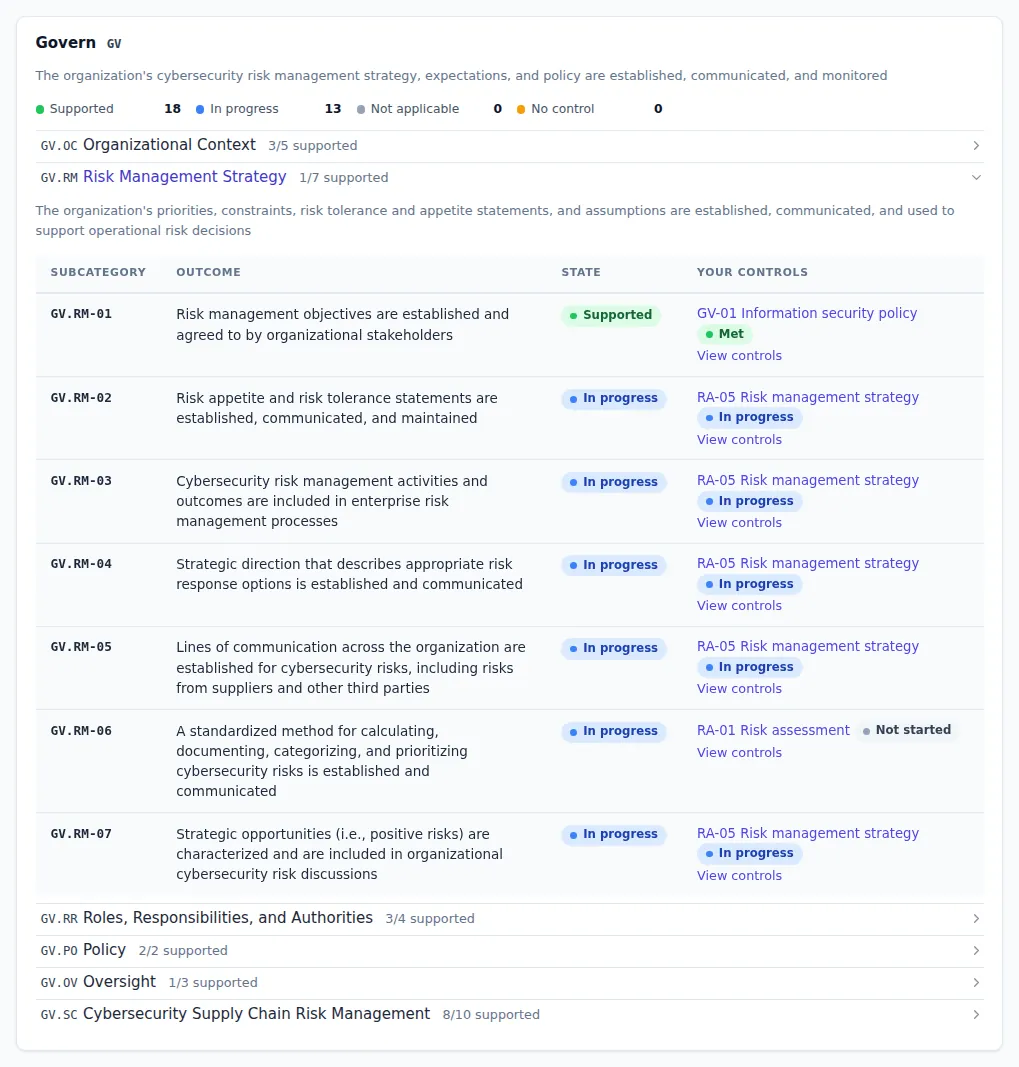
Every NIST CSF 2.0 outcome now names the Nata controls behind it, with your own statuses.
Each control page now lists the CSF 2.0 outcomes the control supports. You can filter the controls list by CSF Function or Category. A new coverage page shows each Function and Category with outcomes marked Supported, In progress, Not applicable or No control, and links to the controls behind each one. CSF here is a reference only. It doesn’t change your SOC 2 readiness, and Nata says a control “supports” an outcome, never that it satisfies CSF. You can read about the framework itself on NIST’s Cybersecurity Framework site.
We also added five controls:
- risk management strategy
- vulnerability disclosure process
- security event triage
- identity proofing
- single sign-on and federation
Each describes real security work and maps to SOC 2 Security criteria such as CC3.1, CC6.1, CC6.2 and CC7.3. Together they give every one of the 106 CSF subcategories a supporting control.
The new controls start as Not started, so your SOC 2 readiness may dip slightly until you work through them. They take manual evidence, so a note or link is often enough.
How to try it: see your CSF coverage, then find the new controls.
Roles that follow your identity provider’s groups
People change teams. When their Nata role is set by hand, someone keeps admin rights long after they need them. That is exactly what an access review (CC6.2, CC6.3) is meant to catch.
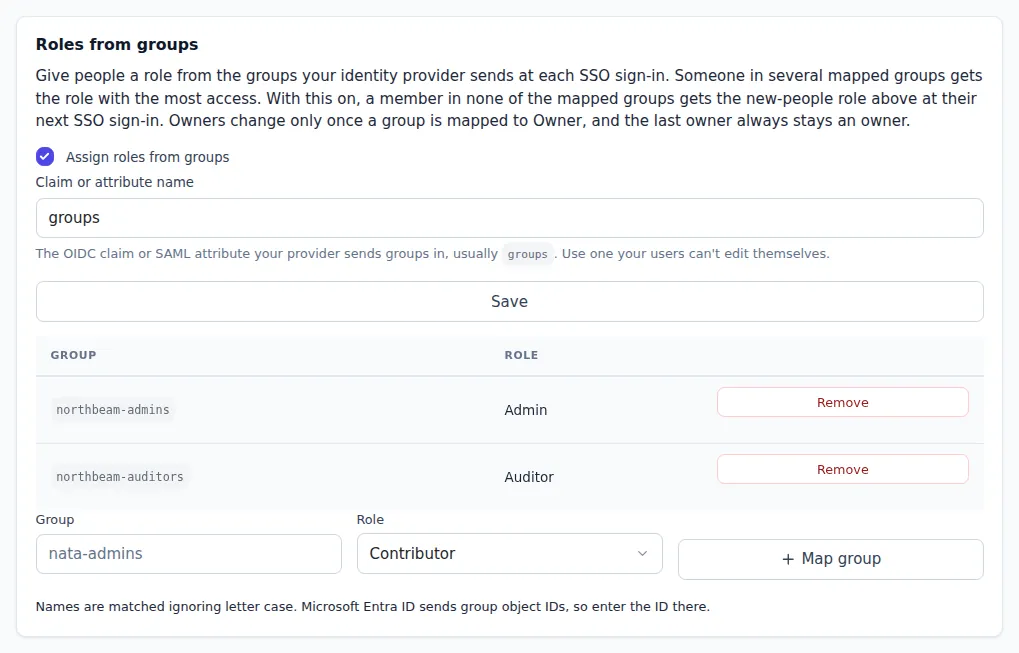
Nata roles follow your identity provider’s groups, so access drift is fixed at the next sign-in.
If you use single sign-on, which we covered in last week’s post, you can now map identity provider groups to Nata roles. At every SSO sign-in, over OIDC or SAML, Nata sets the person’s role from their groups. Someone in several mapped groups gets the role with the most access. If Nata receives groups but none of them are mapped, the person gets your “new people” role, so rights from a group they left go away. If your identity provider sends no groups, nothing changes.
Some safeguards:
- Only owners can map a group to Owner.
- The last owner is never demoted.
- When someone becomes an Auditor this way, their controls and open tasks move to an owner or admin.
Every change is in the activity log. The SSO test sign-in shows the groups Nata received and the role they would give, so you can check your setup before turning it on. The setting is off by default, and roles change at a person’s next SSO sign-in.
How to try it: set up roles from groups in your SSO settings.
Your own risk categories
The register comes with ten built-in risk categories. If your methodology uses its own terms, Owners and Admins can now add up to 30 categories of their own. You can rename or retire them later, and delete them if no risk uses them. Risks keep a retired category, and exports always show the current name. Every change is in the activity log.
How to try it: manage risk categories.
Controls list: policy templates and chips that open things
The controls list has a new Policy templates column. It shows which ready-made templates cover each control, and marks templates you’ve already adopted. The chips in this column and in the Automation column are now links. An integration chip opens that integration. A template chip opens the template, or your own policy if you’ve adopted it. This builds on the policy templates from last week’s post.
Integrations that aren’t available yet no longer appear on the Integrations page or in control suggestions. Everything you see there can be connected today.
How to try it: open the controls list or browse policy templates.
Smaller fixes
Signing in with a passkey on a device that has none now says so clearly and points you to the emailed sign-in link. On phones, the message stays on screen. While your browser’s passkey prompt is open, the page shows that it’s waiting and offers “Use email instead”.
Links inside sentences are now underlined, so you can tell them apart without relying on color. One example is the list of controls shown when you remove a member.
How to try it: on the sign-in page, choose Sign in with a passkey on a device without one, or start removing someone on the members page.
If there’s something your team would like to see next, get in touch.